
AI Storyboard Generator: From Idea to Video
Turn a one-line idea into a storyboard and finished video with Designs.ai.

Most AI video tools give you a slot machine: type a prompt, pull the lever, and hope the clip that comes back is close to what you pictured. That works for a five-second experiment. It doesn't work for a product launch, a client ad, or a short film, where every shot has to earn its place and the hero character has to look the same in shot six as in shot one.
The Designs.ai Storyboard Agent is built for that second kind of work. Instead of jumping straight from prompt to video, it does what a production team does: it writes the plan, shows you the plan, builds the visual references, shows you those too, and only then generates the final video. You approve each stage before any of the next one starts.
This guide covers what the AI storyboard generator does, who it's for, and how to go from a one-line idea to a finished video package.
What is the Designs.ai Storyboard Agent?
Storyboard is one of the specialist agents inside Designs.ai's AI workspace. Its job is in its tagline: turn scenes into video plans. You describe an idea, a script, or a scene, and the agent produces a structured, shot-by-shot storyboard, then carries it through to a final video.
Behind that simple prompt box is a staged pipeline:
- Intake. The agent reads your brief, and if something important is missing, it asks you.
- Text package. A written storyboard covering the story, the shot list, motion and the script.
- Visual package. A storyboard sheet, a character sheet and an environment reference that lock in the look.
- Final video. Generated from the approved plan and saved as a package in your Library.
What makes this different from a prompt-to-video tool is the two review checkpoints: the Text package review and the Visual package review. Nothing expensive happens until you approve the step before it. If you approve the script and later ask for changes to the character design, the approved script stays the foundation, so you aren't starting over.
The Storyboard page describes three core capabilities, and they match how the agent behaves:
- AI scene visualization: written scenes become visual frames.
- Camera shot suggestions: close-ups, wide shots, over-the-shoulder, aerial views and more.
- Character and style consistency: characters, environments and visual style stay consistent across every frame.
Who it's for
Storyboarding used to mean sketch artists, pre-production meetings and a lot of back-and-forth. The Storyboard Agent compresses that into one conversation, which helps a few groups in particular:
- Marketing teams can map out a commercial before anyone books a studio, and get stakeholder sign-off on a script and a visual direction rather than a vague description.
- E-commerce and product brands can upload a real product photo and have it composed into a storyboarded product showcase, keeping the actual product on screen instead of an AI approximation.
- Filmmakers and animators can pre-visualize scenes, check camera choices and pacing, and test a character design before committing to production.
- Social media creators can plan short-form videos shot by shot so the hook, the beats and the payoff are deliberate.
- Agencies get a natural approval workflow: the text and visual packages are exactly the things clients want to see before the final render.
How to create a storyboard and video, step by step
Step 1: Open the Storyboard Agent and describe your scene
Go to designs.ai/en/tools/storyboard and click Try AI Storyboard. After you sign in, you land in the workspace with Storyboard selected. You can also pick Create Storyboard from the quick actions in the prompt bar at any time.
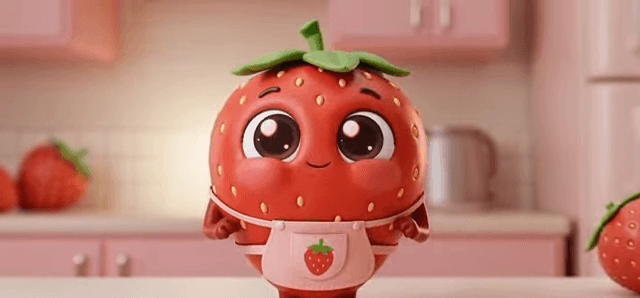
Write your brief in plain language. Include the subject, the setting, the tone and the format. For example: "A 3D animated strawberry milk commercial featuring a cute strawberry mascot."
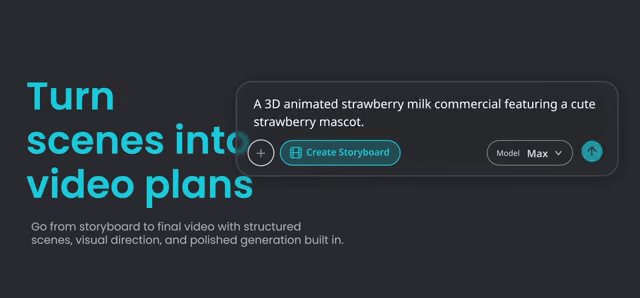
If you're not sure where to start, the agent offers ready-made quick prompts across genres, including "Sneaker product showcase", "Neon courier run" and "Lantern temple timelapse". They're a good way to see what a strong brief looks like.
Step 2: Add references, link your brand, and set the format
This step is optional, but it's where good storyboards become your storyboards.
- Reference images: attach images and tag each with a type: Product, Logo, Character, Scene or Style. The agent treats them differently. A Product reference is something to feature, while a Style reference sets the look. Images must be JPG, PNG or WebP and under 7MB each, and you can add up to five per message.
- Brand: click Link a brand to bring in a brand you've already set up in Designs.ai (see AI Branding). You can choose Include logo in video when it should appear on screen.
- Format settings: the settings bar lets you set Duration, Aspect and Resolution, toggle Audio, and choose how the agent handles the Environment: Auto, Always or Skip unless needed.
Then send your brief.
Step 3: Answer intake questions and review the text package
If your brief leaves out something the agent needs, it pauses with a short card such as "Scene brief needs details" and asks one or two questions. Answer them and click Submit.
The agent then writes the text package. This is your storyboard in words: the story, the planned shots, the script, the motion level (Low, Medium or High) and the storyboard approach (Narrative, Motion control or Hybrid), along with the duration, aspect, resolution and audio settings. You can watch its progress live in the thread.
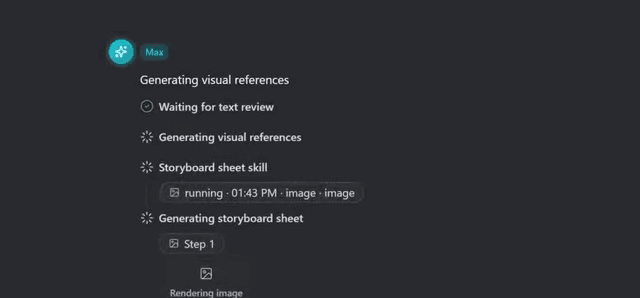
When the Text package review card appears, read it the way a director reads a shooting script. Does the opening grab attention? Is the product on screen long enough? Is the ending clear? Then:
- Click Approve to move on, or
- Click Revise and write your Revision notes, for example: "Make the opening shot a close-up of the bottle, and cut the kitchen tour to one shot."
Step 4: Review the visual package (storyboard, characters, environment)
Once the text is approved, the agent builds the visual package:
- a storyboard sheet that turns each planned shot into a panel, with its framing and camera move;
- a character sheet showing your character from the front, three-quarter and back, plus a silhouette, expressions, props and key poses;
- an environment reference covering the establishing view, a top-down layout map, lighting, props, camera-direction notes and a color palette.
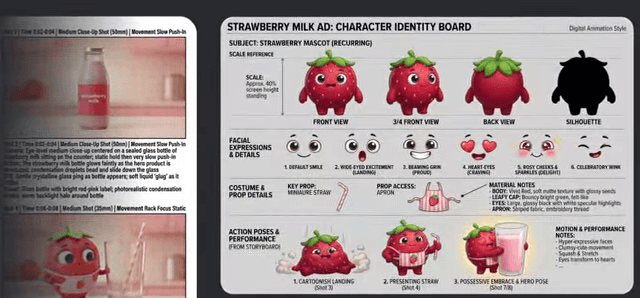
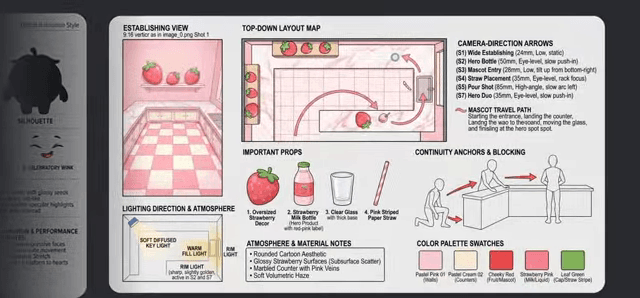
These sheets are what keep the final video consistent, so this is the most valuable review in the process. Check that the character looks right from every angle and that the set and palette match your brand.
On the Visual package review card you can again Approve, or Revise with a Visual revision target: All, Storyboard, Characters or Environment. Targeting only what's wrong (say, Characters: "make the mascot's apron pink, not white") keeps everything you already like.
Step 5: Generate the final video and open it in your Library
After visual approval, the agent generates the final video from your approved plan and references. When it's done, click Open package in Library. The video and its storyboard materials are saved together, so you can download them, share them with your team, or come back to them later.
If a step fails, a Retry button picks up from where it stopped. Your approved text and visuals aren't thrown away.
Tips for better AI storyboards
Write the brief like a creative brief, not a keyword list. "Premium sneaker ad, white studio, model rotates on a turntable, macro close-ups of the outsole, high-contrast lighting" will outperform "cool sneaker video" every time. Name the genre and the reference style you're going for, such as "Pixar-style 3D", "stop-motion" or "35mm cinematic".
Upload the real product. If the video is selling something, add a Product reference image. The agent composes it into the storyboard and the final video, which keeps the details of the actual product on screen.
Spend your attention at the checkpoints. A change made at text review costs a sentence. The same change after the final video means another generation. Be picky early.
Use targeted revisions. When only one part of the visual package is off, revise just Characters or just Environment, and keep the rest.
Link your brand once. If you produce videos regularly, set up your brand in Designs.ai first. Every storyboard can then pick up your colors and logo with Link a brand.
Mind people in references. If a character reference looks like a real person, the video provider may block it. The agent will then offer to Continue with virtual identity so you can keep going with a virtual character.
Frequently asked questions
What's the difference between the Storyboard Agent and the Video Agent? The Video Agent is a conversational way to generate clips quickly. The Storyboard Agent is for planned, multi-shot work: it writes a shot list and script, builds character and environment references, and asks for your approval at the text and visual stages before generating the final video.
Can I customize the storyboard before the video is made? Yes. At both the text and visual review stages you can approve or revise with your own notes. At the visual stage, you can target the storyboard, the characters, the environment, or all three.
Can I export my storyboard? Yes. Finished work is saved as a package in your Library, and according to the Storyboard page you can download your storyboard as images or a shareable file to guide a real shoot.
Do I need design or filmmaking experience? No. You can start from a single sentence or one of the built-in quick prompts. Knowing basic shot language (close-up, wide shot, push-in) helps you give sharper feedback, but the agent suggests shots for you.
How much does it cost? Storyboard runs on Designs.ai credits, which are included in every paid plan. Plans currently start at Go ($9.90/month, 1,000 credits), followed by Plus (2,500 credits; $19.50/month at the current promotional price), Pro ($79/month, 10,000 credits) and Enterprise ($639/month). See Pricing for the latest details.
Plan it before you render it
Great video isn't luck. It's a plan that someone signed off on. The Storyboard Agent gives you that plan in minutes, lets you shape it at every stage, and turns it into a finished video that looks the way you approved it.
Try AI Storyboard on Designs.ai→
Want reusable, node-based creative workflows for images and video as well? Take a look at Designs.ai Studio. New to storyboarding? This overview of storyboards covers the history of the craft.